
Connect Claude AI to WhatsApp: The Complete MCP Protocol Guide
Learn how to connect Claude AI to WhatsApp Business using the Model Context Protocol (MCP) and EZContact. Step-by-step setup for Claude Desktop + WhatsApp automation.
What if your Claude AI could read WhatsApp messages, send replies, tag contacts, and trigger workflows—all from a single chat with your AI assistant?
That’s not a future feature. It’s possible today with the Model Context Protocol (MCP) and EZContact’s WhatsApp MCP server.
In this guide, you’ll learn exactly how MCP works, why it’s the missing link between AI models and business tools like WhatsApp, and how to set it up step by step using Claude Desktop and EZContact.
What Is the Model Context Protocol (MCP)?
MCP (Model Context Protocol) is an open standard created by Anthropic that lets AI models like Claude connect directly to external tools, APIs, and data sources—without custom integrations for each one.
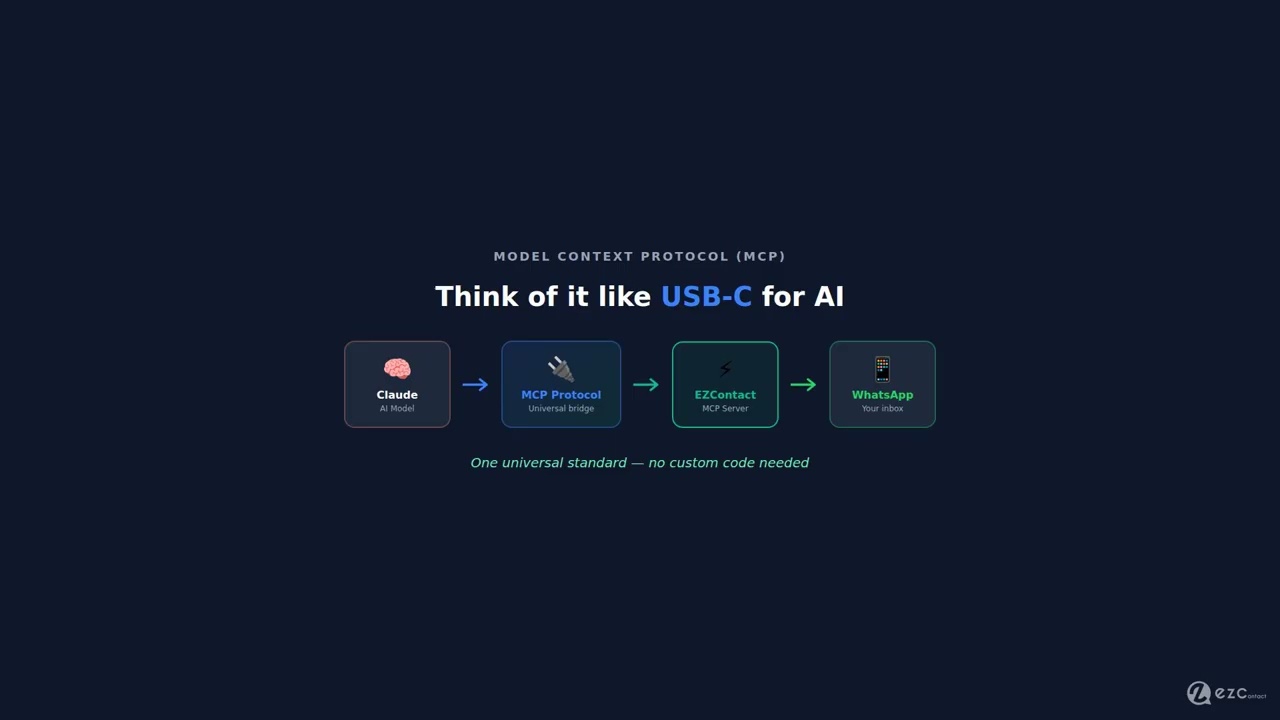
Think of it like USB-C for AI: one universal protocol that connects Claude to your calendar, your CRM, your database, or your WhatsApp inbox.
Before MCP, connecting an AI model to an external tool required custom code for every integration. You had to write prompts, parse responses, handle errors, and maintain the glue layer yourself. MCP standardizes all of that into a clean client-server model.
How it works:
Claude Desktop (MCP Client)
        ↕ MCP Protocol
   MCP Server (e.g., EZContact)
        ↕ WhatsApp Business API
WhatsApp Conversations- You ask Claude a question or give it a task
- Claude sends a request to the MCP server via the protocol
- The MCP server translates that into a WhatsApp API call
- The result comes back to Claude in structured format
- Claude responds with context, insights, or action confirmations
The key insight: Claude can now take actions in the real world—sending messages, reading conversations, tagging contacts—just by receiving natural language instructions from you.
Why WhatsApp + Claude Is a Game-Changer for Businesses
Here’s what becomes possible when Claude has access to your WhatsApp inbox:
Before MCP
- You open WhatsApp, read 50 messages
- You manually categorize: leads, support, complaints
- You copy-paste context into ChatGPT to draft replies
- You switch back to WhatsApp, paste, adjust tone, send
- You update your CRM manually
After MCP (Claude + EZContact)
You: “Claude, check today’s WhatsApp messages and summarize the open leads”
Claude: “You have 8 open leads from today. 3 are asking about pricing (Acme Corp, TechStart, Flores & Asociados), 2 want a demo, and 3 are existing clients with support questions. Want me to draft responses for the pricing inquiries?”
That’s not science fiction. That’s what MCP enables right now.
EZContact’s MCP Server: WhatsApp for AI Agents
EZContact is the first WhatsApp Business platform to offer a native MCP server—making it the only way to give Claude (or any MCP-compatible AI agent) full, secure access to WhatsApp Business conversations.
What Claude can do through EZContact’s MCP server:
| Action | MCP Tool | Description |
|---|---|---|
| Read conversations | get_conversations | List recent chats with filters |
| Send messages | send_message | Send text, images, or documents |
| Search contacts | search_contacts | Find contacts by name, phone, or tag |
| Tag a contact | tag_contact | Apply CRM labels for segmentation |
| Get conversation history | get_messages | Full thread history for a contact |
| Handoff to human | assign_agent | Assign conversation to a team member |
| Send bulk messages | send_bulk | Message all contacts with a specific tag |
This means Claude doesn’t just talk about your WhatsApp—it can act on your WhatsApp.
Requirements
Before you start, make sure you have:
- Claude Desktop installed — claude.ai/download
- EZContact account on the Business plan or higher — app.ezcontact.ai
- WhatsApp Business channel connected in EZContact
- Your EZContact API Key (Settings → API)
- Your Channel ID for the WhatsApp number you want Claude to access
Step-by-Step Setup
Step 1: Get Your EZContact API Credentials
Log in to app.ezcontact.ai and navigate to:
Settings → API & Integrations → API Keys
Click Generate new API Key and copy it. Also note your Channel ID from the Channels section—you’ll need both.
⚠️ Store your API Key securely. Anyone with this key can send messages through your WhatsApp number.
Step 2: Configure Claude Desktop
Claude Desktop supports MCP via a JSON configuration file. Locate the config file at:
- macOS:
~/Library/Application Support/Claude/claude_desktop_config.json - Windows:
%APPDATA%\Claude\claude_desktop_config.json
Open the file (or create it if it doesn’t exist) and add the EZContact MCP server:
{
  "mcpServers": {
    "ezcontact-whatsapp": {
      "command": "npx",
      "args": ["-y", "@ezcontact/mcp-server"],
      "env": {
        "EZCONTACT_API_KEY": "your_api_key_here",
        "EZCONTACT_CHANNEL_ID": "your_channel_id_here",
        "EZCONTACT_BASE_URL": "https://api.ezcontact.ai"
      }
    }
  }
}
Replace your_api_key_here and your_channel_id_here with your actual credentials.
Step 3: Restart Claude Desktop
Close and reopen Claude Desktop. You should see a small plug icon (🔌) in the bottom-left of the chat interface—this indicates MCP servers are connected.
Click the icon to verify “ezcontact-whatsapp” appears in the list of available tools.
Step 4: Test the Connection
In Claude Desktop, type:
“List the 5 most recent conversations in my WhatsApp inbox”
Claude will call the EZContact MCP server and return a structured summary of your recent conversations with contact names, last message, and timestamp.
If it works—congratulations. You’ve just connected Claude to WhatsApp. 🎉
Real-World Use Cases
Use Case 1: Morning Inbox Briefing
Every morning, ask Claude:
“Give me a briefing of unread WhatsApp messages from the last 12 hours. Group them by: leads, support requests, and existing clients.”
Claude reads your inbox, categorizes messages using context, and presents a clean summary—so you start your day knowing exactly what needs attention.
Use Case 2: Draft Replies in Your Brand Voice
“Draft a reply to Gabriela Rodriguez. She’s asking for a demo next week. Be warm but concise. Confirm Thursday at 3pm works and include our meeting link.”
Claude drafts the message. You review and say “send it.” Claude sends it through EZContact to Gabriela’s WhatsApp.
Use Case 3: Lead Qualification at Scale
“Find all conversations from the last 7 days where someone asked about pricing but hasn’t been tagged as ‘qualified’ yet. Tag them as ‘needs-followup’.”
Claude runs through your conversation history, identifies untagged pricing inquiries, and bulk-tags them in your EZContact CRM—a task that would take 30+ minutes manually.
Use Case 4: Follow-up Sequences
“Send a follow-up message to everyone tagged ‘demo-scheduled’ reminding them about their demo tomorrow. Include the meeting link.”
Claude uses send_bulk through EZContact to message all relevant contacts with a personalized reminder—no list building, no export/import, just one natural language instruction.
Use Case 5: Competitive Intelligence
“Search for all conversations where customers mentioned our competitors in the last 30 days. What are the common objections?”
Claude finds relevant threads, extracts competitor mentions, and synthesizes the patterns—helping your sales team sharpen their positioning.
Security Considerations
Giving an AI model access to your business WhatsApp requires careful security practices:
API Key Scope: EZContact lets you create read-only or read-write API keys. For use cases that only need to read conversations, use a read-only key to limit blast radius.
Audit Logs: Every action Claude takes via MCP is logged in EZContact’s activity log (Settings → Audit Log). Review this periodically.
Rate Limits: EZContact’s MCP server respects WhatsApp’s rate limits automatically. Claude will receive an error if you’re sending messages too quickly.
Data Privacy: Conversation data passes through the MCP protocol in memory—it’s not stored by Anthropic. However, Claude may use conversation content in its context window to answer your questions.
MCP vs. Traditional Zapier/n8n Integrations
You might be wondering: “I already have n8n connected to EZContact—why do I need MCP?”
The difference is fundamental:
| Traditional Automation (Zapier/n8n) | MCP + Claude | |
|---|---|---|
| Trigger | Fixed events (webhook, schedule) | Natural language instructions |
| Logic | Pre-defined rules | Dynamic reasoning |
| Flexibility | Rigid flows | Adapt to new situations |
| Setup | Hours of configuration | Minutes with MCP |
| Best for | Repetitive, predictable tasks | Open-ended, complex decisions |
Traditional automation is perfect for: “When order is placed → send confirmation message.”
MCP + Claude is perfect for: “Look at today’s leads and decide who needs a follow-up, based on what they said and how long since they last heard from us.”
Both have their place. The most powerful setups use n8n for trigger-based automation and Claude MCP for intelligent, context-aware decisions.
What’s Next: AI Agents That Run Autonomously
The MCP integration we’ve described here is still human-in-the-loop—you give Claude instructions, Claude acts.
The next frontier is autonomous AI agents: Claude running on a schedule, proactively checking your inbox, making decisions, and acting without waiting for you to prompt it.
EZContact is building toward this future. Combined with tools like Claude’s computer use and agentic frameworks, the vision is an AI that:
- Greets new leads the moment they message
- Qualifies, nurtures, and schedules demos
- Escalates only the edge cases to a human
- Reports back with a morning briefing of what happened overnight
The MCP server is the foundation of that architecture. Start here.
Getting Started Today
Ready to connect Claude to your WhatsApp?
- Create your EZContact account at ezcontact.ai
- Connect your WhatsApp Business number
- Follow the MCP setup steps above
- Start with a simple use case: the morning briefing
The businesses that invest in AI infrastructure now will have a compounding advantage over those that wait. WhatsApp is already your customers’ preferred channel. Claude is already the most capable AI assistant available. MCP is the bridge that connects them.
👉 Get started with EZContact →
Have questions about the MCP integration? Join our community or reach out directly through app.ezcontact.ai.